Wednesday, October 1, 2008

Exchange 2007 - Upgrading Email Policies

Upgrading Email Address Policies (EAP)

If Exchange 2007 organization resides with  legacy instances of Exchange 2000/2003. The deployment of Exchange 2007 within the same organization results in a coexistence with legacy Exchange and Exchange 2007. As with any coexistence/migration scenario, steps should be taken to convert/move legacy born objects to native Exchange 2007 objects. This section will talk about the steps you can take to upgrade your legacy LDAP filters for EAPs to the new syntax, allowing you to upgrade your Address List and Email Address Policy objects to the Exchange 2007 object version. Exchange 2007 uses a new style of filter syntax to replace the LDAP filters of previous versions.

Note: that if you decide not to upgrade the ALs or EAPs, there will be no broken functionality from the Exchange 2007 side. New users will still be provisioned according to those policies. However you will not be able to edit those objects from 2007 Exchange Management Console until they are upgraded.

To confirm the need to upgrade the filter (and the version) on your EAP. There are a couple of key indicators you can check. The first is that if you try to edit the EAP in Exchange 2007 GUI, you'll get a screen with this error - "Unable to edit the specified E-mail address policy. E-mail address policies created with legacy versions of Exchange must be upgraded using the 'Set-EmailAddressPolicy' task, with the Exchange 2007 Recipient Filter specified.":

Another way to check that doesn't rely on the GUI is to issue this one-liner:

Get-EmailAddressPolicy | Format-List Name,*RecipientFilter*,ExchangeVersion

This cmdlet will return all of your EAPs, and will include any properties containing RecipientFilter and the ExchangeVersion property. Look for these clues:

· LdapRecipientFilter is populated but RecipientFilter is empty - Exchange 2003 doesn't populate RecipientFilter; that's what we're about to do!

· RecipientFilterType is "Legacy"

· ExchangeVersion is "0.0 (6.5.6500.0)"

<Company> Email Address Policy Results (Pre-EAP Upgrade) –

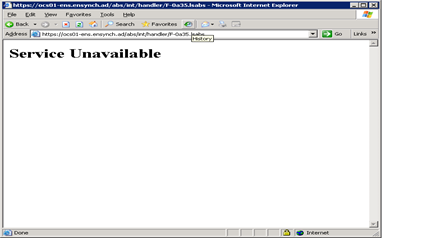
· Sample One legacy (Exchange 2003) and One Native (Exchange 2007)

Legacy Sample

Name : Default Policy
RecipientFilter :
LdapRecipientFilter : (mailnickname=*)
LastUpdatedRecipientFilter :
RecipientFilterApplied : False
RecipientFilterType : Legacy
ExchangeVersion : 0.0 (6.5.6500.0)

Native Exchange 2007 Sample

Name : company
RecipientFilter : (CustomAttribute1 -eq 'company.com' -and Alias -ne $null)
LdapRecipientFilter : (&(extensionAttribute1=company.com)(mailNickname=*))
LastUpdatedRecipientFilter : (CustomAttribute1 -eq 'company.com' -and Alias -ne $null)
RecipientFilterApplied : True
RecipientFilterType : Precanned
ExchangeVersion : 0.1 (8.0.535.0)


Upgrading Default EAPs

Note: Once these changes are made, you can no longer manage the email policies within the Exchange 2003 System Manager.


IMPORTANT
: This process is only for “Default” email policies. Upgrading Custom Email Policies.

Since the "Default Policy" EAP has a well-known filter, we can simply provide the Exchange 2007 equivalent of this well-known filter to do the upgrade. Here's the one-liner:

Set-EmailAddressPolicy "Default Policy" -IncludedRecipients AllRecipients

When you run this one-liner, you'll be prompted to ask whether you REALLY want to do the upgrade with this text: "To save changes on object "Default Policy", the object must be upgraded to the current Exchange version. After the upgrade, this object cannot be managed by a previous version of Exchange System Manager. Do you want to continue to upgrade and save the object?"

Once you've committed to a "Y" answer on this confirmation, the "Default Policy" EAP will be upgraded to Exchange 2007 version with the new Exchange 2007 filter in place. You can confirm this by looking at the same properties as before. Now you'll notice that there is a RecipientFilter property populated, that the RecipientFilterType is "Precanned", and that the Exchange version has bumped to 0.1 (8.0.535.0). Further, you may notice that you can no longer make changes to the recipient policy through Exchange 2003 ESM, although the Exchange 2003 Recipient Update Service (RUS) will continue to process these recipient policies just fine.

Upgrading Custom EAPs

What if you've created some special EAP or AL objects for your organization, over and above the built-in set of EAP and AL objects? How can you convert the "not-so-well-known" LDAP filter you have created into an equivalent OPATH filter for use by PowerShell?

Upgrading Custome EAPs is not as simple as upgrading Default Policies. There is more to than simply running a command.

http://msexchangeteam.com/archive/2007/01/11/432158.aspx

Script - Create New FreeBusy Connector

The following script can be used to create a new Transporter Suite Free/Busy Connector.  This can be for a new connector on an Existing Exchange Server or a new Connector on another Exchange Server.  Modify the code accordingly.

#Create a new Domino Free Busy Connector

# Transporter Commmand Parameters (New-DominoFreeBusyConnector)
#        -Name: Connector name#       
#        -DominoServer: Identifies the Lotus Domino server running the excalcon.exe task.
#        -DomainoSMTPDomains: Specifies the Domino SMTP domains that the Exchange transporter Domino Free/Busy Connector monitors for free/busy requests.
#        -NotesINIFile: Path to the Lotus Notes.ini file, including filename.
#        -RefreshIntervalSeconds: Number of seconds free/busy information will be retained for a previously requested user. The default is 900 seconds
#        -NotesPassword : The password associated with the local Lotus Notes ID file.
#        -MaintenanceIntervalMinutes : Determines how often the connector should verify that the Lotus Notes users are listed in the free/busy public folders.
#        -QueryWindowDays :Defines how many days of free/busy information to retrieve. The default is 60 days

#        -RequestTimeOutSeconds : Specifies how long to retry accessing a server before returning an error.The default is 15 seconds

Write-Host
Write-Host
Write-Host "C R E A T E N E W F R E E / B U S Y C O N N E C T O R"
Write-Host

$Password=Read-Host "Enter Notes Password: " -AsSecureString

#DELETE EXISTING CONNECTOR PRODUCTION
Remove-DominoFreeBusyConnector -identity '<ExchServerHostingTransporterSuite>-DominoFreeBusyConnector' -Confirm:$False

#NEW FREE BUSY CONNECTOR PRODUCTION
New-DominoFreeBusyConnector -Name '<ExchServerHostingTransporterSuite Domino Free Busy Connector' -NotesPassword $Password -DominoServer '<DominoServerHostingEXCALCON/DOMINO DOMAIN-ConnectedDomains 'company.com; exchange.company.com;' -NotesINIFIle 'D:\lotus\notes\notes.ini' -RefreshIntervalSeconds '300'

#START FREE BUSY CONNECTOR
Start-DominoFreeBusyConnector

#START SYNCHRONIZE ENTRIES
Start-DominoFreeBusyConnector -synchronizeEntries $True

Domino to Exchange 2007 Migration Tool Comparison


Domino/Notes to Exchange/Outlook migration tool set comparisons:

 ** Note:  These are Data Migration Tool Comparisons.  Not Coexistence features.

Migration Capability

Detail

MS Transporter

CMT - Universal Binary Tree

Quest - Notes Migrator

Mail

Will it move mail?

Y

Y

Y

Encrypted Mail

Will it decrypt mail?

N

Y

Y

Archived Local

Will it import archives from local client?

Y

Y

Archived Server

Will it import server based archives?

Y

Y

Y

To-Do

Will it migrate To Do Lists to Tasks?

Y

Y

Y

Keep-To-Do-Assignments

Will it keep all the information?

N

Y

N

Doc Links

Are they converted?

Y

Y

Y

Excluded hidden folders- custom

Will it migrated user private folders?

N

Y

Y

Personal Address Book

Will it do local names.nsf to contacts?

Y

Y

Y

Personal DL and Membership

Will it translate these names.nsf to contacts?

Y

Y

Y

Server Groups

Can it migrate server groups?

Y

Y

Mail InDB

Can it migrate Mail-in databases?

N

Y

Y

Document Library

Can it migrate document libraries?

Y

Y

N

Discussion Library

Can it migrate Discussion libraries?

Y

Y

N

iNotes Contacts

Will it migrate iNotes contacts to Outlook contacts?

N

Y

Y

Filter Mail

Filter mail based on date?

Y

Y

Y

Filter Attachment

Filter based on size?

*

Y

Y

Filter Calendar

Filter calendar based on date?

*

Y

Y

Filter To-Do

Filter based on date?

*

Y

Y

Powershell

Does it interface with Powershell?

Y

N

Y

Migrate to PST

Will it migrate mail directly to a PST?

N

Y

Y

PST Contains Calendar

Will it migrate calendar directly to PST?

N

Y

Y

PST Contains Tasks

Will it migrate tasks directly to PST?

N

Y

Y

PST Contains Contacts

Will it migrate Contacts directly to PST?

N

Y

Y

Custom Address Mapping

Custom address translation during migration of data?

N

Y

Y

Rules

Will it move Notes client rules to Outlook Rules?

N

Y

N

Rooms/Resources

N

Y

Y

Custom Reoccurring Meeting

Will it migrate rooms and resources to Exchange?

N

Y

Y

Pre-Processing

Do you have any pre-processing setup options?

*

Y

Y

Post-Processing

Do you have any Post-Processing setup options?

*

Y

Y

Domino Directory Manipulation

Does it change the Domino directory?

*

Y

Y

Batch Mode

Can it be  batched?

*

Y

Y

Config Files Required

Does it require a config file for batch migrations?

*

N

Y

Migrate All Document Views

Does it migrate documents not in any folder?

N

Y

Y

Users Created Required ?

Does it require mailbox to exist?

N

Y

Y

Merge Contact to User

Does it do AD manipulation?

Y

N

Y

Mail Enabled users required?

Does it do AD manipulation?

N

Y

Y

Mailboxes Created required?

Does it do AD manipulation?

N

Y

N

Reporting

Are reports available?

N

Y

N

End-User Option

Can an end user DITY?

N

Y

N

Purge mail mode

If you have to restart the migration can you  purge mail first?

Y

Y

N

Merge Mail mode

If you have to restart the migration can you  merge the information without remigrating?

Y

Y

N

Maximum Threads

Can thread count be modified to increase performance?

16

Y

32

Skip Empty Folder option

Can you skip empty folders?

Y

Pre Migration Customizable AD Scripts

Do you provide  free scripts to enhance the process?

Y

Post Migration Customizable AD Scripts

Do you provide  free scripts to enhance the process?

Y

Reschedule Meetings Post Migration

Can you reschedule a meeting successfully POST Migration?

Y

Friday, August 1, 2008

Exchange Back Pressure

After setting up an Exhange 2007 test environment on a Virtual Machine, I noticed an interesting issue with the routing of mail. Actually no mail routed at all, and the user connected whether it be via Outlook or OWA could not send any emails. No warnings, error messages or NDRs were evident to the user and the emails would simply remain within their "DRAFTS" folder.

During my investigation on the Exchange Mailbox server. I noticed a warning within the application log for an

EventID 1009 - warning event with the Source and Category Labeled as "MSExchangeMailSubmission". The description of the event was as follows "The Microsoft Exchange Mail Submission Service is currently unable to contact any Hub Transport Server in the local Active Directory Site. The servers may be too busy to accept new connections at this time".

After discover of the warning on the Mailbox Server I investigated the Hub Transport application log and discovered a warning EventID 15002, Source MSExchangeTransport, Category: ResourceManager. Although a warning this targeted the source of the problem, "Resources". More indepth look at the warning displayed the following information:

The resource pressure is constant at High. Statistics: Queue database and disk space ("C:\Program Files\Microsoft\Exchange Server\TransportRoles\data\Queue\mail.que") = 67% [High] [Normal=62% MediumHigh=64% High=66%] Queue database logging disk space ("C:\Program Files\Microsoft\Exchange Server\TransportRoles\data\Queue\") = 67% [Normal] [Normal=91% MediumHigh=93% High=95%] Version buckets = 1 [Normal] [Normal=40 MediumHigh=60 High=100] Private bytes = 19% [Normal] [Normal=71% MediumHigh=73% High=75%] Physical memory load = 83% [limit is 94% to start dehydrating messages.] Inbound mail submission from other Hub Transport servers, the Internet, the Pickup directory, the Replay directory, and the Mailbox server, if it is on a Hub Transport server, has stopped.Loading of e-mail from the queuing database, if available, continues.

Granted servers were not down and services were up and running; however mail was still not flowing. So I decided to do some research and I found a technet article that references this thing called "
Back Pressure" for Exchange 2007. Basically Back Pressure is a resource monitoring feature built into Exchange 2007 Hub and Edge Transport server roles, which affects message delivery depending upon the current state of system resources available.

On a Hub or Edge Server the following three levels of system resource utilization are used:
  • Normal The resource is not overused. The server accepts new connections and messages.
  • Medium The resource is slightly overused. Back pressure is applied to the server in a limited manner. Mail from senders in the authoritative domain can flow. However, the server rejects new connections and messages from other sources.
  • High The resource is severely overused. Full back pressure is applied. All message flow stops, and the server rejects all new connections and messages.

All configuration options for back pressure are available in the EdgeTransport.exe.config application configuration file that is located in the C:\Program Files\Microsoft\Exchange Server\Bin directory. The EdgeTransport.exe.config file is an XML application configuration file that is associated with the EdgeTransport.exe file. EdgeTransport.exe and MSExchangeTransport.exe are the executable files that are used by the Microsoft Exchange Transport service. This service runs on every Hub Transport server or Edge Transport server. Changes that are saved to the EdgeTransport.exe.config file are applied after the Microsoft Exchange Transport service is restarted.

So in order to get my messages flowing referenced the warning EventID 15002 description and modified the "High" level values so that the calculation of my available resources would not exceed this value. Granted, you can increase the available resources (i.e. diskspace) by adding resources, however in my case this was a VM so I decided to go risky route and increase the EdgeTransport.exe.config file values to prove the concept.

In my case I modified the following line entry "PercentDatabaseDiskSpaceUsedHighThreshold" and increased it from 80 to 95.

Once I modified, saved the file and restarted the Transport service, messages were flowing out of the client "Draft" folders. Then I noticed that mail flow seized again, so I resorted to creating another drive/volume for messaging QUEUE and Logs then changed the Queue and Logs location. Of which can ALSO be performed by modifying the EdgeTransport.exe.config file. How to Change the Messaging Queues can be referenced
HERE. Once I allocated enough space for the messaging queues, messages were flowing and Exchange was happy.

Reference
Back Pressure
Reference
Changing Messaging Queues

Tuesday, April 1, 2008

Protocols - OCS Web Conferencing


Conference Protocols


Office Communications Server 2007 multimedia conferencing uses a variety of protocols for signaling, conference management, data collaboration, multimedia, and communication among conference components.

SIP (Session Initiation Protocol). An IETF (Internet Engineering Task Force) standard signaling protocol for initiating, managing, and terminating sessions between one or more participants, including Internet telephone calls, multimedia distribution, and multimedia conference sessions.


HTTP (Hypertext Transfer Protocol). A standard Internet protocol that in Office Communications Server 2007 is for communication between the Focus and conferencing servers, downloading Address Book Server updates to clients, and downloading meeting content to users.
C3P (Centralized Conference Control Protocol). A custom protocol for communicating conference creation and control commands from clients to Office Communications Server 2007. C3P commands are carried as XML in SIP SERVICE or INFO messages.

PSOM (Persistent Shared Object Model). A custom protocol for transporting Web conferencing content.

SRTP (Secure Real-Time Transport Protocol). An IETF standard protocol that is used in Office Communications Server 2007 for securely transporting audio and video content to various media devices.

RTCP (Real-Time Control Protocol). An IETF standard protocol used in conjunction with SRTP to convey information about the signal quality of an audio-video conferencing session to various media devices.

OCS 2007 - Authentication Issues [0xC2FC200D]

Office Communication Server 2007: Authentication/Logon Issue
Failure [0xc3fc200D]


It is common to run across communication and authentication issues when deploying OCS. One of the tricks is trying to determine the root of problem. Failure codes and results are not always self explanatory and let’s just face it OCS 2007 being a new product does not have a whole lot of available support resources yet. This article addresses an authentication problem that generally stumps many implementers. The validation wizard usually picks up on this issue; however it does not scream out “here is the problem” fix me. Generally the results make no mention of a little thing called Server Principal Name (SPN), which is truly the underlying problem. The image below displays a typical authentication error during validation, that is a direct result of an incorrectly registered SPN for the Office Communication Server (Standard or Enterprise). The sections below will provide a brief explanation of the issue as well as troubleshooting and remediation of the problem.


Issue:
Failure [0xC3FC200D] One or more errors detected


Explanation:Registration failure upon authentication is attributed to the Server Principal Name (SPN). The Kerberos protocol authentication that is used by the Office Communications Server service for client authentication requires the proper configuration of service principal names (SPNs) within the Active Directory® Domain Services. The SPN is a string that identifies the service (Office Communications Server) that a client wants to access.
For proper operation of the Kerberos authentication, the SPN of the Office Communications Server must be registered in Active Directory under the name of the user account where the service runs, typically RTCService. If the SPN of the server is registered in multiple accounts, Kerberos authentication does not operate properly.
Solution:

To verify SPN is set correctly:
1. Install the OCSResourceKit for Office Communication Server 2007
OCS Resource Kit.
2. Open a command prompt and change directories to the OCS Resource kit directory.
3. The reskit contains the “CheckSPN” script that can be used to validate the SPN for the OCS Enterprise or Standard edition server.
4. First run the tool to find all SPNs registered under a specific user account. The default user account, where the Office Communications Server service runs, is RTCService.

>Cscript Checkspn.vbs /List /u:RTCService

Sample Error: ERROR: The SPN for is registered incorrectly

5. Next run a check to see whether the SPN for a specific Office Communications Server Standard Edition or Enterprise Edition server is registered under one account. The server is identified by its FQDN (fully qualified domain name). If there is more than one registration, the script prints the user accounts that have this SPN registered. This mode is useful for detecting that the servers SPN has been registered under multiple accounts. If this is the case, the duplicate SPNs must be deleted until there is exactly one account under which the SPN is registered. Having the same SPN registered under multiple accounts causes Kerberos protocol authentication to fail on the client.

>Cscript checkspn.vbs /check /s:ocsserver.contoso.com

If multiple entries are returned, an ERROR will be returned and that the SPN is registered incorrectly. To correct the duplicate account must be deleted.
6. Deletes the SPN for a specified Standard Edition server or Enterprise Edition server from a specified user account. This mode is useful for cleaning up duplicate SPNs
>checkspn.vbs /del /s: /u:

7. Once you think you have the SPN set correctly, rerun the scripts in step 4 and 5 to verify SPN.
8. Next rerun the Validation tool and verify authentication is working properly for Kerberos and NTLM.
9. Now you can test connectivity and functionality using Communicator client.


Address Book Chaos

The following article will detail procedures for resolving common Address Book configuration issues.

  • Service Unavailable Issues
  • Address Book authentication issues
  • Address Book download errors


Service Unavailable Issue

Address Book access could be a direct result of a stopped IIS service on the ABS host.  Checking for a service outage is performed from a browser and IIS Manager console. 

Check that services are online:

  1. Open IIS Manger and navigate to the web site hosting "ABS" virtual directory.
  2. Check that the service for the web site is running.   If it is not then start up the web site and refresh to verify the service stays online.
  3. Next navigate to the "ABS" virtual directory, and open "Properties".
  4. Under the "Virtual Directory" tab, look to see which application pool the virtual directory is using. (Default is LSGroupExpAppPool)
  5. Click cancel to close the properties window
  6. Navigate to the "Application Pools" directory within IIS.
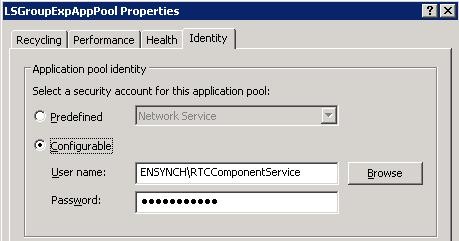
  7. Check the LSGroupExpAppPool (or whichever application pool was listed in step 4) and verify the service is running.  If it is not, open the Properties of the Application Pool and select the "Identity" tab.
  8. Verify that Configurable is selected and the Username and Password fields have values.  Common issue here is that the Username is populated; however the password field is blank.  This is usually a result of changed password for the service account listed. (Recommendation would be to make sure the service account listed is set within Active Directory as "Password Never Expires".
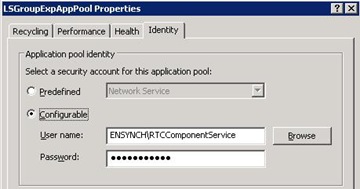
     AppPoolIdentity
  9. If the password is blank, enter the password for the account and start up the service.
  10. Verify service stays online. Even if the password is blank or incorrect the service may start however the next time the ABS service is accessed the application pools will disable itself.
  11. To test... Within IIS manager navigate to the ABS\ Int\Files directory and log down one of the address book service file names.  This filename will be appended to the URL entered in the following step.
  12. Open a browser and enter the URL to the address book server along with the full path the ABS file logged in the previous step.  Example:  Https://absserver.company.ad/abs/int/handler/F-0a2e3d.lsabs
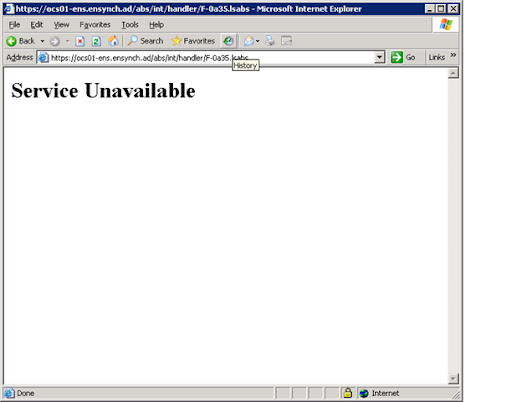
  13. If the Identity configured above is correct and password is valid then you will get prompt for the downloading of the file.  It it was configured incorrectly you will receive the "Service Unavailable" page (listed below).LCSAppPool-disabled-ServiceUnav 
      

Address Book Authentication Issues

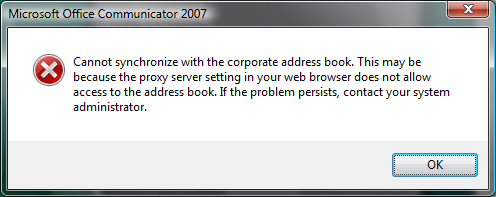
Authentication issues could range from multiple credential prompts for Address Book access, Synchronization errors, download failures, etc.  The following procedures have resolved majority of the Address Book issues I have encountered

Sample images of common ABS issues:

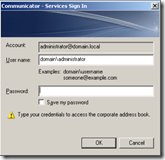
  • Multiple Credential Prompts (MOC)
    MOC-Prompt 
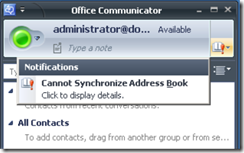
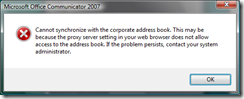
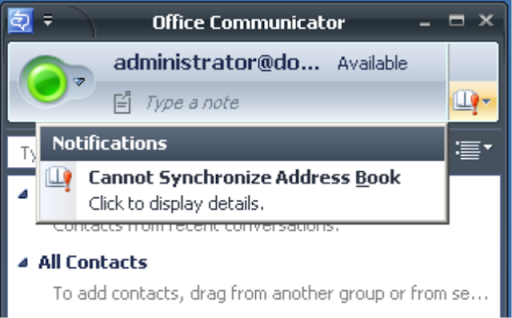
  • Synchronization errors (MOC)
    MOC-ABS-Error

ABSError

Note:  If you are experiencing Address Book issues ONLY on Windows VISTA machines and the XP or 2000 fine. Refer to my other article Address Book Download Issues (Vista machines).

Lets get started:

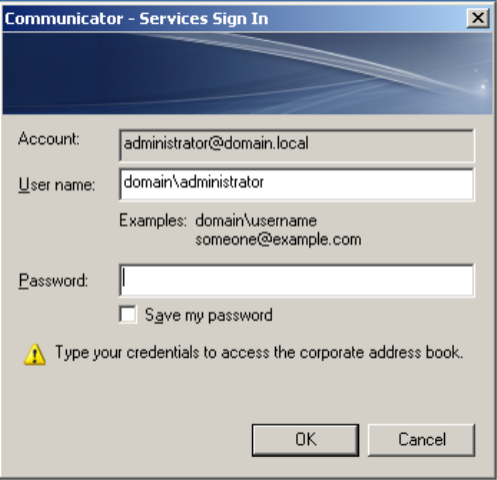
When starting Office Communicator, it will sign the user in but then present you with the following prompt to download the address book. Normally there is no prompt (Integrated Windows Authentication) and Communicator downloads the address book seamlessly.

When Office Communicator signs in it receives a referral from the OCS 2007 frontend to the address book URL.  The default is a HTTPS URL which requires a valid certificate assigned to IIS.  Before you begin troubleshooting, verify the Address Book URL that your clients are attempting to connect to.

Note:  This document focuses solely on resolving issues related to Internal Address Book service connection issues.  External connection issues to the Address Book service extend beyond this document, because many other factors can come into play (i.e. Reverse Proxy, Connectivity, Firewalls, etc.)


Check Internal Address Book URL and Output Location

Note:  This example is retrieving the address book url for an Enterprise Pool deployment.

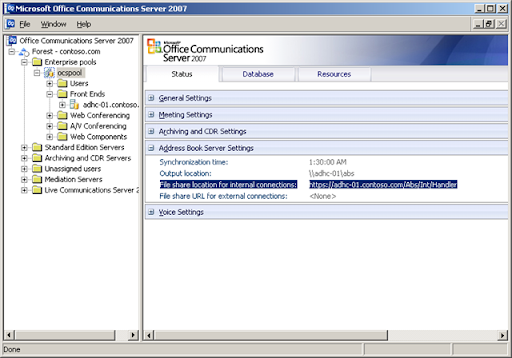
  1. Open the Office Communication Server 2007 console and navigate the Enterprise Pool. You can see the address book URL  and share location in the status page for the pool .  Share Location is where the full and delta Address Book files are stored which MOC client downloads.
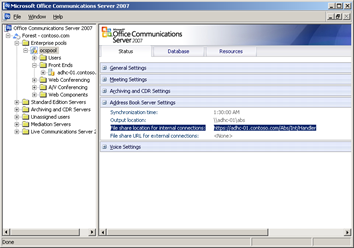
     ABSURL-Console
Address Book URL https://adhc-01.contoso.com/abs/int/handler


Verify permissions to the Address Book Files

Verify the security configuration of the UNC path specified.  Ensure that RTCUniversalGuestAccessGroup has the following permissions:

  • Share level: Read

  • NTFS level: Read & Execute, List Folder Contents, and Read.
  1. After verifying the permissions on the share, review the IIS settings for the virtual directory.  Below is an example of the structure for Abs.  The Files virtual directory should be referring to the UNC path in its properties. 
  2. After permissions are verified, run a query or lookup the membership to the RTCUniversalGuestAccessGroup. Log the membership to the group, as they will be referenced in the following section.


Verify the "Connect As" Account to the Address Book Files directory.

Ensure that we have set the correct account that will be used to access the UNC share in the virtual directory properties as in the example below.

  1. Referencing the same directory above "ABS\Int\Files", select Properties > Virtual Directory tab.
  2. Click the Connect As button. 
  3. Verify that the account listed is a member to the RTCUniversalGuestAccessGroup.  If another group was used in the previous section verify the "connect as" account is a member of that group.


Verify the Authentication Settings for the ABS Virtual Directory

Now that you have the actual location clients are attempting to access for Address Book downloads, open IIS manager and verify the Authentication Setting for that site.

  1. Open IIS Manager and navigate to the Web Site (ex. default website) hosting ABS virtual directory.
  2. Right click on the ABS virtual directory and select Properties.
  3. Click Directory Security tab and click Authentication and Access Control button.
  4. Check which authentication settings. (Internal ABS access would normally be set to Integrated Windows Authentication).  We are going to assume that Integrated Authentication is selected.  Continue to step 5.
  5. Integrated Windows Authentication will use Kerberos as the primary method of authentication, and in order for this to work the Service Principal Name (SPN) must be configured correctly for the url clients access otherwise authentication issues will exist. 

Check Service Principal Name (SPN) is registered correctly

To complete this test, you must have the Office Communication Server 2007 Resource kit is installed.  The tool used to check the SPN registration is the CheckSPN.vbs script. 

Kerberos authentication is not possible for services without properly set Service Principal Names (SPNs). SPNs are unique identifiers for services running on servers. Each service that uses Kerberos authentication needs to have an SPN set for it so that clients can identify the service on the network. It is registered in Active Directory under a user account as an attribute called Service-Principal-Name. The SPN is assigned to the account under which the service the SPN identifies is running. Any service can look up the SPN for another service. When a service wants to authenticate to another service, it uses that service’s SPN to differentiate it from other services running on that computer.

In general, only one SPN should be set for each service. Multiple SPNs can cause clients to connect to the wrong system or the ticket may be encrypted with the wrong key.

Note:  Common configuration problems are the use of a virtual FQDN listed for the certificate subject name (ex. ocspool.company.com) and/or SPN is registered with multiple user accounts.  Kerberos will choke when the name listed on the certificate is not an actual machine name within Active Directory and SPN is registered with multiple user accounts.

For this test you will first run the Checkspn.vbs tool against the name listed onthe ABS site's certificate subject name.

!!! The recommended configuration is one where the Subject Name on the certificate and the machine hosting ABS are one in the same.  Most common configuration no,no is to use the same certificate used for the enterprise pool.  This is a virtual machine name and kerberos will fail.

  1. Open a command prompt and navigate to where the CheckSPN.vbs file is located (default directory:  C:\Program Files\Microsoft Office Communications Server 2007\ResKit)
  2. Run the checkspn script:   /abs/int/handler">/abs/int/handler">/abs/int/handler">/abs/int/handler">/abs/int/handler">/abs/int/handler">/abs/int/handler">/abs/int/handler">http://<serverFQDN>/abs/int/handler 

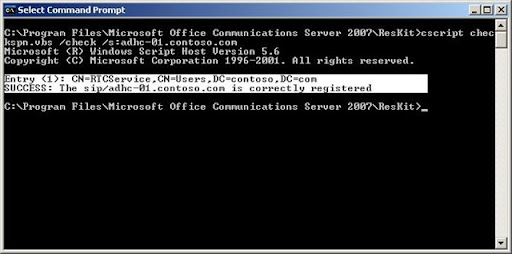
    cscript checkspn.vbs /check /s:<serverFQDN>
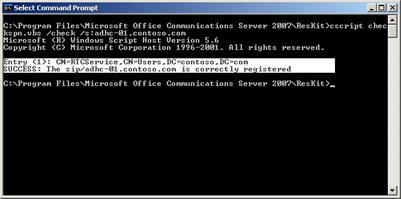
    checkSPN
  3. Verify that you receive  "SUCCESS" results.  If you receive an error, reference the Office Communication Server 2007 Resource Kit Readme file for steps to resolve.  This document will be located within the same directory as Checkspn.vbs.  

In Addition to check modify SPNs you may have to use the SETSPN utility provide with the Windows 2Kx Support Tools.  For how to use this tool reference the following site(s).

Service Logon Failures due to incorrectly set SPNs: http://technet2.microsoft.com/windowsserver/en/library/579246c8-2e32-4282-bce7-3209d1ea8bf11033.mspx?mfr=true


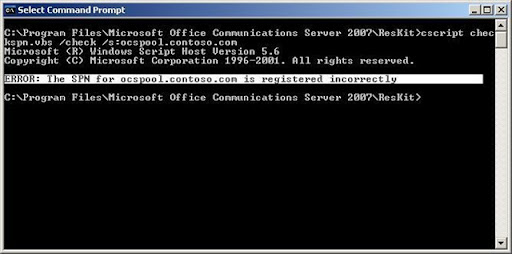
Below is an example of an incorrectly registered SPN.  This error was generated because the name listed is a  virtual name and not an actual machine name registered in AD.  The following error was resolved by assigning the certificate Subject Name the name of the actual machine FQDN hosting ABS and changing the Address Book URL listed with OCS 2007 console.  To change Address Book URL location, proceed to the next section.
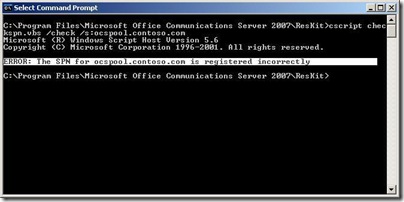
 checkSPN-err   

IMPORTANT!

Typically the ABS location, Meeting Content download location, and distribution list expansion virtual directories fall under the same Web Site, which in turn use the same certificate.  If for whatever reason the ABS URL Location is change, the meeting content download and distribution list expansion URL locations must also be modified to function properly. 

Change ABS URL Location(s)

Reasons for changing the ABS URL:

  • Resolving SPN issues
  • Moving ABS location to another server
  • Incorrect URL entered during installation of OCS 2007

Note:  ABS URL changes cannot be changed within the OCS console.  They have to be modified through WMI (wbemtest.exe).

  1. Logon to the Standard Edition or Enterprise Pool server with an account that is a member of the RTCUniversalServerAdmins group.
  2. From a command prompt run wbemtest.exe
  3. In the Windows Management Instrumentation tester window and click Connect
  4. In the Connect dialog box, in Namespace, type root\cimv2, and then click Connect
  5. In the Windows Management Instrumentation Tester dialog box, click Query button
    Enter the following query
    1. Standard Edition Server: In the Query dialog box, type the query, such as:

      Select * from MSFT_SIPAddressBookSetting where backend="(local)\\rtc"”
    2. Enterprise Pool: In the Query dialog box, type the query, such as:

      Select * from MSFT_SIPAddressBookSetting where backend = ”BackendServerName\\DatabaseInstanceName”. 
  6. In the query results box double-click the results.
  7. Select value you wish to edit. Example(ExternalURL), and then click Edit Property.
  8. In the Property Editor dialog box, click to select the NOT NULL option.
  9. In the Value box, type the external Web Farm URL in the following format, and then click Save Property and Save.
    https://externalURL.domain.com/abs/Ext/Handler
  10. Click Save Object and then click Close.
  11. Click Exit.

 
IMPORTANT!

If the Address Book URL has been changed you most likely will have to modify the Meeting Content Download URL, and Distribution List Expansion URLs.  To do this reference the following section.


Change WMI Setting for Meeting Content and Meeting Content Metadata folders

  1. Logon to the Standard Edition or Enterprise Pool server with an account that is a member of the RTCUniversalServerAdmins group
  2. From a command prompt run wbemtest.exe
  3. In the Windows Management Instrumentation tester window and click Connect.
  4. In the Connect dialog box, in Namespace, type root\cimv2, and then click Connect
  5. In the Windows Management Instrumentation Tester dialog box, click Query button.
  6. Enter the following query
    • Standard Edition Server: In the Query dialog box, type the query, such as:

      Select * from MSFT_SIPDataMCUCapabilitySetting where Backend = “(local)file://///rtc
    • Enterprise Pool: In the Query dialog box, type the query, such as:

      Select * from MSFT_SIPDataMCUCapabilitySetting where Backend = BackendServerName\\DatabaseInstanceName”.

      Example (If default instance): Select * from MSFT_SIPDataMCUCapabilitySetting where Backend = "SQLServer"
      Note: When entering the sql statement make sure to have a carriage return following the command.
  7. In the Query dialog box, click Apply.
  8. In the Query Result dialog box, double-click MSFT_SIPDataMCUCapabilitySetting
  9. In the Properties box select the property that you wish to change (i.e. MeetingMetadataLocation and MeetingContentLocation), edit the values and enter the correct UNC path and save property.
  10. Click Save Object, and then click Close.
  11. Click Exit

Change WMI Setting for Distribution List Expansion

  1. Logon to the Standard Edition or Enterprise Pool server with an account that is a member of the RTCUniversalServerAdmins group.
  2. From a command prompt run wbemtest.exe
  3. In the Windows Management Instrumentation tester window and click Connect
  4. In the Connect dialog box, in Namespace, type root\cimv2, and then click Connect
  5. In the Windows Management Instrumentation Tester dialog box, click Query button
  6. Enter the following query
    1. Standard Edition Server: In the Query dialog box, type the query, such as:

      Select * from MSFT_SIPGroupExpansionSetting where backend="(local)\\rtc"
    2. Enterprise Pool: In the Query dialog box, type the query, such as:

      Select * from MSFT_SIPGroupExpansionSetting where backend = BackendServerName\\DatabaseInstanceName”
  7. In the query results box double-click the results.
  8. Select value you wish to edit. Example(ExternalDLExpansionWebURL), and then click Edit Property.
  9. In the Property Editor dialog box, click to select the NOT NULL option.
  10. In the Value box, type the external Web Farm URL in the following format, and then click Save Property and Save. https://externalURL.domain.com/abs/Ext/Handler
  11. Click Save Object and then click Close.